
Step 1: Updating Fedora System Packages
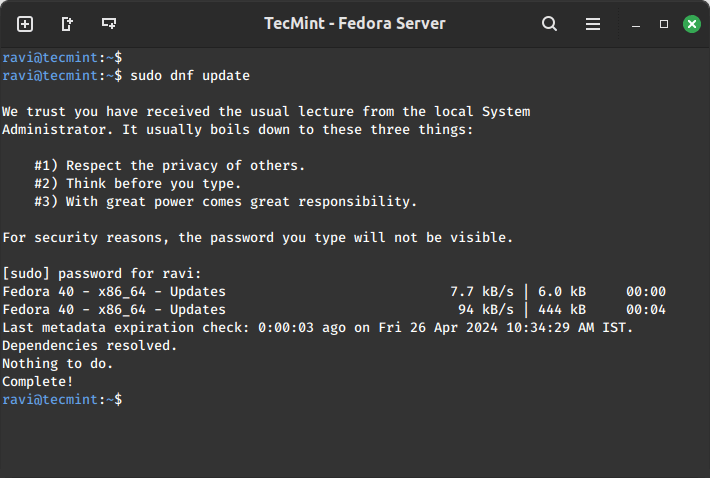
Once Fedora workstation is installed( on server , php can’t work, I don’t understand), the first step is to update the system packages to ensure you have the latest security patches and software updates.
sudo dnf update
Step 2: Install Apache on Fedora
Apache is a popular and most reliable web server on the Linux platform powering multiple websites and web-based applications on the web. It comes with several modules to enhance its functionality under different categories including security modules, server access modules plus so much more.
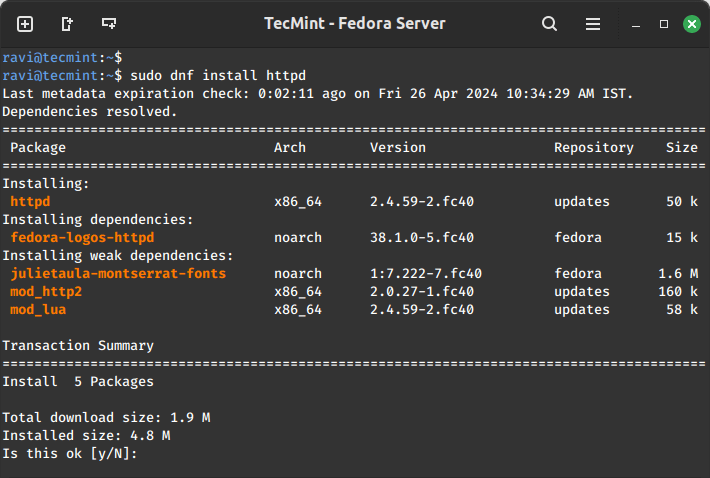
To install Apache, issue the command below on your terminal:
sudo dnf install httpd
After installation is complete, you need to perform a few tasks to get your Apache web server running.
First, you need to set it to start automatically at boot time:
sudo systemctl enable httpd.service
Then start the service:
sudo systemctl start httpd.service
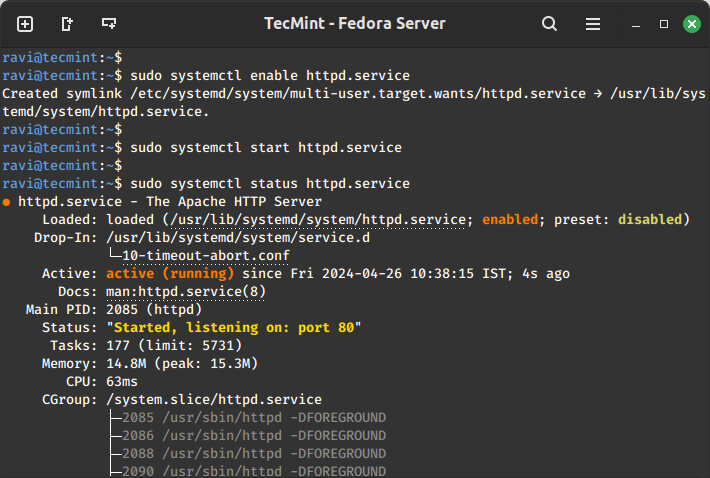
Next, to be sure that the service is running, you can issue the command below:
sudo systemctl status httpd.service
To access your web server over HTTP/HTTPS, you need to enable access to it through the system firewall.
To do that, run the following commands:
sudo firewall-cmd --permanent --add-service=http
sudo firewall-cmd --permanent --add-service=https
Then reload the system firewall configurations as follows:
sudo systemctl reload firewalld
One last thing to do under Apache installation is to check whether the default Apache installation index page can load in your web browser, therefore open your web browser and enter your server IP address as shown:
http://server-ip-address
If you don’t know your server IP address, you can find using the below ip command.
ip a | grep "inet"
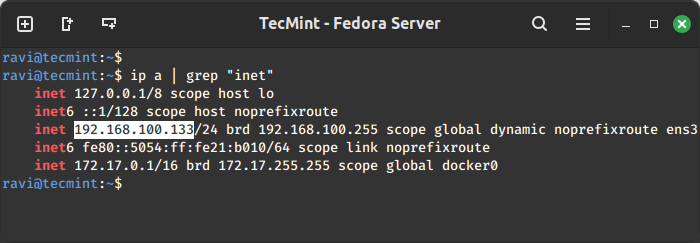
You should be able to view this page below:
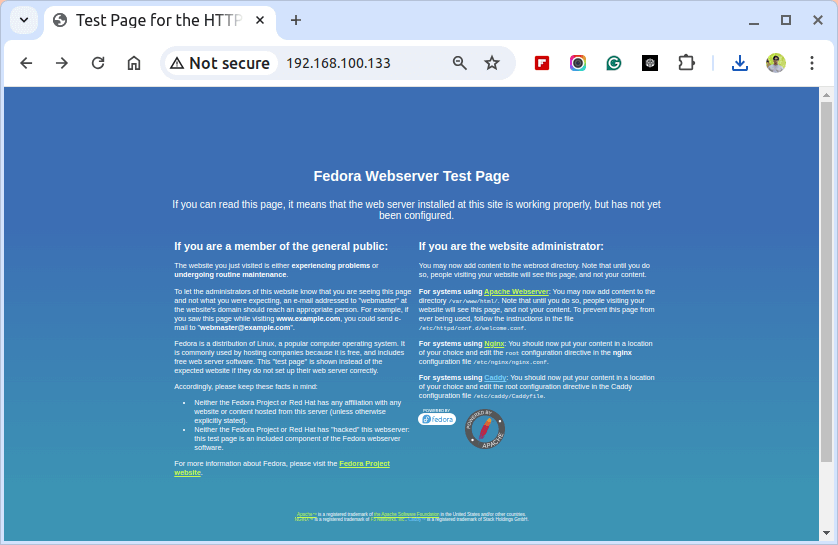
Note: The Apache default root directory is /var/www/html, and this is where you can drop your web files.
Step 3: Install mysql on Fedora
view https://blog.nickywin.com/?p=174 cause of I don’t like mariaDB.
Step 4: Install PHP on Fedora
PHP is a serve-side scripting language that handles and sends user requests to the web and database server.
To install PHP on Fedora, use the command below:
sudo dnf install php php-common
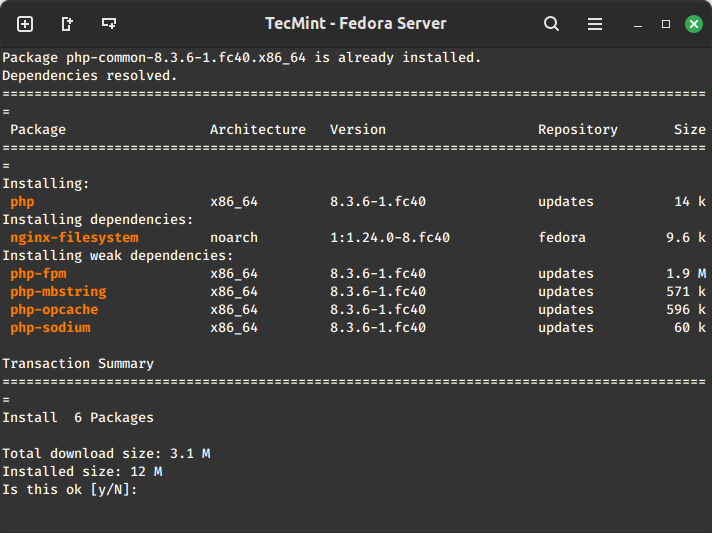
In order for PHP to work well with mysql databases, you need to install some PHP modules therefore, execute the command below to install the required PHP modules:
sudo dnf install php-mysqlnd php-gd php-cli php-mbstring
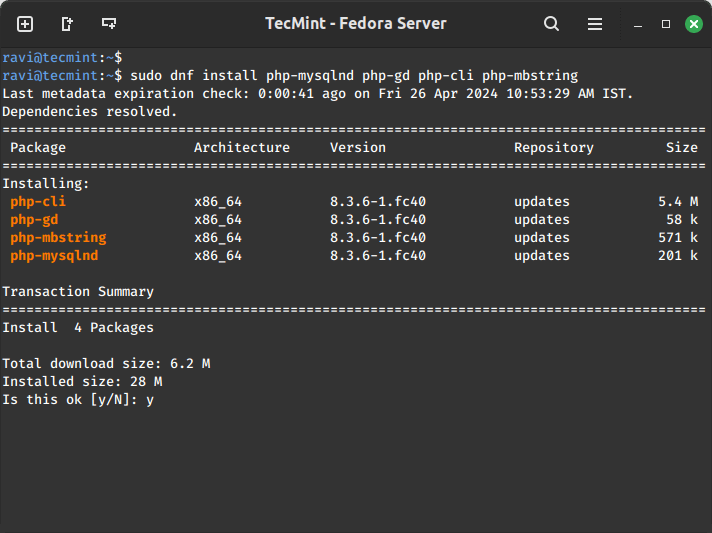
When the installation process is complete, you need to restart the Apache web server, this will allow all the changes to take effect before you can have a complete working LAMP stack.
To restart Apache, issue the command below:
sudo systemctl restart httpd
Now you can test it all, using your favorite editor, create a called file info.php in your Apache root directory as follows:
sudo vi /var/www/html/info.php
Add the following lines in the file, save it, and exit.
<?php
phpinfo()
?>
Then open your web browser and enter the following URL:
http://server-ip-address/info.php
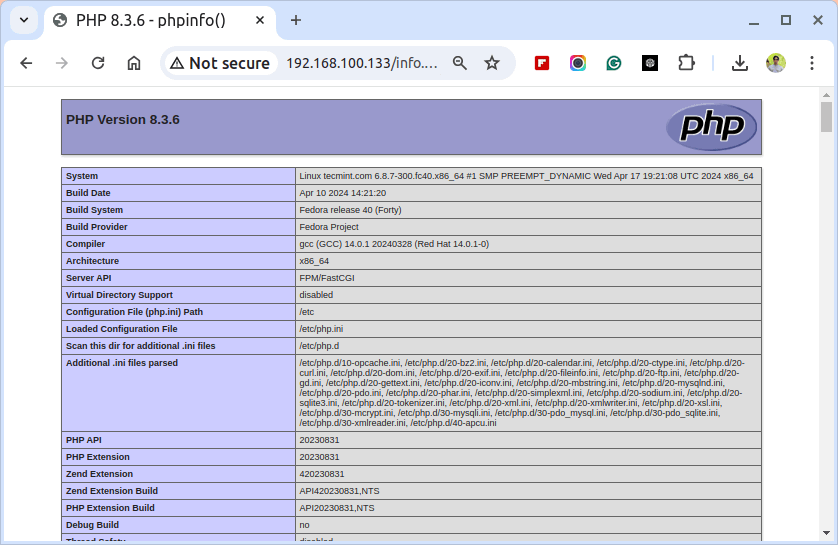
In case everything is set, then you should be able to view this PHP information below: